Easy Life Tips

April 08, 2007

Windows XP Faster Computer Startup Tips

Windows XP Faster Computer Startup TipsDo you get disappointed while you wait around for your slow Windows XP computer to startup? Windows XP will itself load and startup any program that is in the startup folder whether you mean to use it or not. This post will show you how to speed up the bootup process of your PC by taking away the programs that bog it down.

1.You can Save any open work.

2.Now Shut down all applications.

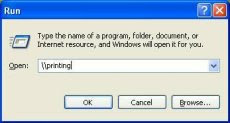
3.Click Start->Run. In the text box labeled "Open", Tupe msconfig and click "OK".

You will see 'system configuration utility' Window. (please note: If you disable the important applications from the msconfig, the computer may not start in order. Therefore, while using msconfig, please keep a note of the applications which you want to uncheck to start while computer starts.)

4.Click on the "Startup" tab option. You will see a listing of all the startup programs that get loaded itself when you startup your windows XP computer. The more applications you have checked to startup, the longer it takes for your computer to startup.

If you would like to know more about the listed programme , check http://www.Sysinfo.org and look up the program and its details.

5.Uncheck the programs that you don’t want to include in start up and then clicWindows XP Faster Computer Startup Tipsk "Ok".

6.Click on Restart your computer option and you should notice that it starts up quicker.

Other options You Can Do

7.Look under the "BOOT.INI" tab. You will see a window labeled "Timeout:", and a numerical value. By default, it's 30 seconds, so it waits 30 seconds before boot. This can be reduced, and you may change it to 3 seconds.

Hibernation

After you have done all above changes, another method you can do is to enable the computer to hibernate. Hibernation option closes and opens Windows faster than normally.

1.Go to Start->Control Panel->Power Options. Click on the Hibernate tab.

2.Click on the box that says "Enable hibernation" to check it.

3.Click on the Advanced tab option and change the Power buttons options if you want to hibernate by pressing the sleep button or the power button. Otherwise, holding the Shift key while in the Turn Off your Computer menu will give you the option to hibernate.

4.Remember to Restart your computer every week or so to clear your computer.

Now the power can be completely turned off, even at the socket so that no power is wasted, and next time when you start the computer you will see the previous closing stage of your computer.

Labels: , ,

Continue to Read...

January 19, 2007

Free file manager for Windows - UltraManager v2.3

Free file manager for Windows
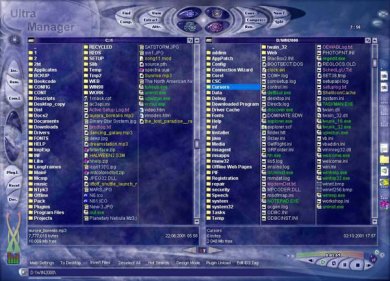
Free file manager for Windows. Built on the graphic base completely. By means of the built-in designer of schemes possible easy and quickly create beautiful graphic interfaces.

Main features :

• Completely graphic interface.
• Built-in designer.
• Supported archivators: ZIP,LHA,CAB,TAR,ARC,ZOO,ARJ,RAR.
• Internal viewer, that support: JPG,GIF,BMP,DIB,TIF,TGA,PCX,ICO formats.
• Built-in utility of converting the graphic files.
• Support multimedia files: MOD,XM,S3M,ITZ, MID,WAV,MPA,MP2,MP3,IT, MTM,STM,MED, AVI,MPG,MOV.
• Internal Text Editor.
• Plug-ins support.
• Fast file operations.
• Playlists.
• More useful functions.

Website Link

Labels:

Continue to Read...

January 12, 2007

Stick notes on your desktop with StickyPad

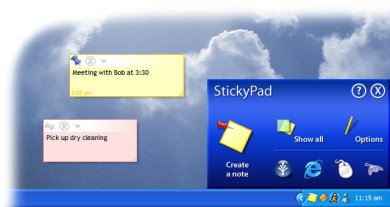
Stick notes on your desktop with StickyPadStickyPad is a friendly, easy-to-use tool that enable you to place sticky notes on your desktop. You can type notes to yourself, set up important meeting and appointment reminders, keep track of a daily to-do list, and anything else you would do with normal paper notes. Your sticky notes can be printed, pasted into other applications, or emailed to coworkers or friends.

You can even make notes translucent and have them float above your other multiple windows, so you can see both your note and what you are working on. When you log off, StickyPad remembers all of your notes, and when you log back on, your notes are still there. Once you try it, you won't want to work without StickyPad again.

The new version of StickyPad adds some great new features, such as shortcut keys, so you can write sticky notes from any Windows application without using the mouse, a great time-saver for keyboard jockeys. The latest version also sports a help system in case you get lost, an updated appearance, and shadows, a great new visual effect

Labels:

Continue to Read...

November 24, 2006

Download Windows XP SP3 With Vista Theme by Amit

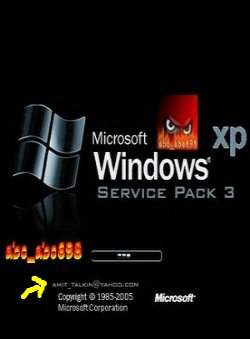
Download Windows XP SP3 With Vista Theme by Amit Windows XP SP3 With Vista Theme by Amit : This is actually a pirated copy of Windows XP (ISO installer) which also includes Microsoft Office 2003.

Here's the full warning posted by Mike on Windows XP newsgroup.

You would be well advised to stay clear of this FAKE SP3 package.It is NOT suitable for testing as it is NOT SP3.If is just a collection of hotfixes and other updates we have released. It will not update your Windows XP system to SP3It also contains a number of private " hotfixes that are usually only issued to users with a specific identifiable problem. The hotfixes are not as rigorously tested at public released ones this is why we ask you to call PSS to get them so we can track you and provide further assistance such as new versions of the fixes etc as they become available. Just installing all the "privates" on your PC may make you machine LESS stable and will also put you out of support from Microsoft or an OEM as you are installing incorrectly issued private hotfixes.Frankly this "package" should be avoid and you should continue to use Windows Update and the download site to get the most up-to-date and correctly issued Microsoft fixes and patches.Anyone who installs this thinking they are getting SP3 (even as a preview) is being grossly mislead and is posing a significant potentially non recoverable risk to their PC and data.

So again, Windows XP SP3 With Vista Theme by Amit is not from Microsoft

Labels:

Continue to Read...

September 30, 2006

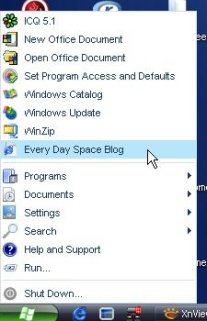
How to Add Website Link on Start Menu?

Do you want to see your Favorite Website on Start Menu Link? It would be very handy and quick to access the website.

Well here is how you do it. Assuming that you are using Windows XP.

Step.1
Open your Favorite Website and add to your Favorite List.
Internet Explorer: Favorite > Add to Favorite
Firefox Browser: Bookmark > Bookmark This Page
Close the window after you have added the website to your favorite List

Step.2
Right Click on Start Button
Choose "Properties"

Step.3
You will get a "Task Bar and Start Menu Properties" window
Click on Customize
Click on "Add" Button
Click on "Browse" Button
Locate To your "Favorite" Folder (This will be probably My Computer > C: > Document and Setting > Choose Your User Account > Favorite)

Step.4
In Favorite Folder you will find the Website you saved.
Click on it and Press the Button "Next"
Give a Name which will appear in your Start Menu

That's it. Look at your Start Menu and you will find your favorite website there.

Labels:

Continue to Read...

September 05, 2006

Malicious Software Removal Tool - What is it?

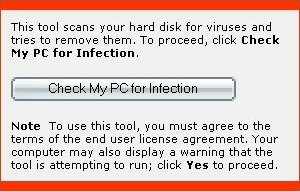
Malicious Software Removal ToolThe Microsoft Windows Malicious Software Removal Tool checks computers running Windows XP, Windows 2000, and Windows Server 2003 for infections by particular, rife vicious software—including Blaster, Sasser, and Mydoom—and helps withdraw any transmission establish. When the sensing and removal procedure is comprehensive, the instrument displays a study describing the result, including which, if any, vicious software was detected and removed.

Microsoft releases an updated edition of this instrument on the second Tuesday of each month, and as needed to react to protection incidents. You can operate the instrument from this Web page anytime or download it to your computer.

The edition of the instrument delivered by Microsoft Update and Windows Update runs in the backdrop and so reports if a transmission is establish. If you would care to operate this instrument more than formerly a month, consumption the edition on this Web page or establish the edition that is accessible in the Download Center.

Because computers can appear to function normally when infected, Microsoft advises you to run this tool even if your computer seems to be fine. You should also use up-to-date antivirus software to help protect your computer from other malicious software.

Related Links

ActioncodeDownload the Tool

Find Tool Help

Get Tool Information


Labels:

Continue to Read...

August 28, 2006

5 Easy Steps to Run Your Personal Computer at FULL Speed

increase computer speedMany guys always wonder why their computer seems to be running very very slow. They forget the fact, that like a motor vehicle, a computer also needs regular maintainance. There are few essential steps you can do, to make sure a faster running and more efficient computor function. This article assumes you are running Microsoft Windows.

1. Update your Operating System regularly to ensure that the operating system (OS) is updated with the latest security updates and patches.To do this, click on the Start Menu->All Programs and select the Windows Update icon.

2. Do a complete maintainance on your computer, at least once a month. Regilar maintainance task includes a Disk Defragamentation, Disk Clean up, browser cache clean up. Click on start,accessories,system tools in Windows,disk cleanup, disk defrag, Also Click Start > Run> Type prefetch > Ctrl + A and Press delete button.

3. Cleanup your tool bar, by removing unnecessary software from running all the time. More Programms on your taskbar runs constantly, slowing down the computer.

4. Cleanup your Startup Programme List. Less Programme in Startup list speed up your computer. As you install new Programmes, some of those programme are likley to be listed in Startup list. So you should do a regual check up on Startup. For information on Startup Clean Read this Information: How to Increase your Computer Startup Speed?

5. Regularly update anti-virus software running on your system. Eventhough you enable "Auto Update" it is wise to check very often. Make sure that the anti-virus software is updated with fixes to the actual engine and to the database files that contain the latest cures against new viruses, worms and Trojans. Run a Full System Scan atleast once in a week.

Also Read: How to Increase Your Computer Speed Fast

Labels:

Continue to Read...

August 25, 2006

New Yahoo Messenger with Windows Live™

Yahoo Released a New version of IM with Windows Live™. Have all your IM friends in one place. Ping-away with people who use Windows Live (MSN) Messenger. They'll also be on your contact list so you can see when they're online.

Also the New version has Plugin Feature: You can Add your personal touch. Handy plug-ins deliver the stuff you want to your Yahoo Messenger. You can Choose Yahoo! plug-ins or ones from eBay, Amazon.com, and more.

The instant messaging software enables you to set up a list of contacts that also use the program. Once you set up this list, you can see who is online at a particular moment. If the person you want to talk to is online, you can begin a text, voice, or video conversation with them quickly and easily. If they are not online, you can still send a text message that they will receive when they login or leave them a voicemail

Labels:

Continue to Read...