Easy Life Tips

April 14, 2007

Windows DVD Maker For Vista

Windows DVD Maker For VistaWindows DVD Maker is amazing new software built right in to Microsoft's Windows Vista for DVD authoring!

Windows DVD Maker is a user friendly application comes with premium editions (Home Premium and Ultimate) of Windows Vista. Windows DVD maker is designed to enable the creation of DVD movies in Windows. This application serves as a companion program to Windows Movie Maker.

Windows DVD Maker can pass an XML file to DVD Maker. This software use its MPEG-2 videoWindows DVD Maker For Vista and Dolby Digital audio encoding abilities in their own applications
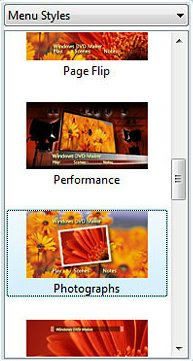
Windowsdvdmaker.com is a well ranked website that helps you to get started with DVD authoring in Windows Vista. This website has some advanced tips and tricks to help your project really shine!

With the in-built slide show support in Windows DVD Maker, you can also share and enjoy photo and video slide shows, as well as home made movies, using a normal DVD player. Photos added to the DVD will be included as a slide show with fade and cut transitions feature between photos along with background music you import.

A software development kit (SDK) from Microsoft will enables third-party developers to create extra styles and transitions for even more stylish DVD production.

Windows DVD Maker has the feature of creating chapter points automatically by analyzing the photos and videos and creating compelling motion video thumbnails. By using your remote control, you can easily navigate between chapters or scenes when viewing the DVD.

You can preview your DVD using the built-in DVD preview option, and finally burn your DVD video. With just a few steps and clicks, you can produce a professional-looking DVD Video to share with your friends and family.

Labels: , , , ,

Continue to Read...

April 03, 2007

Backup Your Computer in Windows Vista

To Do a Full computer Backup, do the following:
  • Click Start, go to Control Panel.
  • Choose 'System and Maintenance', go to Backup and Restore Center.
  • Select "Back up computer" button.
  • In the dropdown box, select the location to backup your data, then click Next button.
  • (Notice that Backing up entire computer can not be done to same drive you are backing up.)
  • After confirming your backup settings, click "Start backup" button.
To do a backup of files and folders, do the following:
  • Click Start, go to Control Panel.
  • Choose System and Maintenance, go to Backup and Restore Center.
  • Click "Back up files" button.
  • In the dropdown box, choose the location to backup your data, then click Next.
  • On the "Which file types do you want to backup?" page, choose appropriate categories, then click Next button.
  • On the "How often do you want to create backup?" page, choose frequency, day, and time, then click "Save settings and start backup" button.

Labels: , , ,

Continue to Read...

March 31, 2007

Download Free Windows Vista Theme

How To Get Vista Theme on XP PC using style XP - Download Free Windows Vista Theme

Labels: , ,

Continue to Read...

March 28, 2007

How to Setup Child Account in Windows Vista?

Setup Child Account in Windows VistaYou can add Parental Controls to user accounts in Windows Vista. These steps will help you to determine how a child will use the computer.

Click Start Button, then go to Control Panel.
Click 'User Accounts and Family Safety' Icon.
Go to, click Parental Controls Option.

On the "Choose a user and setup Parental Controls" option screen, click on the user name you want to change.

On this screen, there are two options to choose that can be turned on or turned off: (Parental Controls option and Activity Report option).

About Parental Controls

In Parental Control Option, the following settings can be changed for various levels of security.

Windows Vista Web Filter (This controls websites that can be viewed).
Time Limits (You can set time the computer can be used).
Games (This controls games that can be played).
Allow and Block Specific Programs (blocks programs from running).

Double click on the appropriate settings you want to change.

About Activity Report

You can Collects computer usage information on all the above settings.
Simply Double Click the "View Activity Report" on right side of screen to display usage details.

Labels: , ,

Continue to Read...

March 17, 2007

How to Hide Desktop Icon Text on Windows Vista?

Hide Desktop Icon Text on Windows VistaIn Windows Vista some icons are just perceptible enough that nobody should need text to a lower place them to tell them what the icon is for. A good illustration of this is the icon for Internet Explorer. We’re all truly used to it by now, and the text just makes it surly. You just right-click on the shortcut icon, and choose Rename option. Now you should hold down the Alt key and type in 255 on the keypad to the right of the keyboard. You can not exercise the number keys right above the keyboard, they will not work in Windows Vista. If you own a laptop, you can switch on numlock and then use the little number keys next to the regular letters.

For the number one shortcut on the desktop, a mere Alt+255 will do the trick. For the adjacent shortcut, you will have to enter the combining twice (Alt+255 again Alt+255). Now for the third, three times… you now get the idea. The way this method works is that the Alt+255 character is space, so the shortcut filename is really just named with a character that is entirely blank. Since you can’t have 2 shortcuts or files named the demand same thing, the second shortcut will have to be named with 2 blank characters.

Now we have a cool looking icon on the desktop, with no bothering text below it. If you exercise this tip to rename a folder, you w'nt be able to rename the folder back using the right-click rename. I am not certain why this is. What you will have to do is open a command prompt and alter directory into the containing folder. It will look as a space. Remember that the Recycle Bin icon won’t work this way.

Labels: , ,

Continue to Read...